An ACE COMBAT 8 trainer is a third-party PC tool that changes campaign values such as health, ammunition, cooldowns, mission time, score, MRP, or game speed. The available information documents several Steam-focused choices, but none is an official game feature. The documented options depend on build compatibility and, where the provider requires it, an anti-cheat bypass or alternate launch method. Use trainers only in an offline, single-player campaign session, back up your saves first, and assume that progression edits may remain after the trainer is closed.
There is no single setup that is guaranteed to work for every mission. Community reports conflict on options such as infinite health and infinite flares, and some mission scripts reportedly stop progressing while certain cheats are active. Treat every option as an experiment, enable one change at a time, and keep a clean way back into the game.
If you only need control or camera changes, compare the PC mods guide. Use the campaign mission list for legitimate replay routes and the MRP guide when you prefer normal progression.
Version scope — October 7, 2026: This page was edited from supplied research. No numbered game build or independent playtest is recorded for this guide. Tool compatibility follows the linked author’s release notes, not a test by this site.
Choose the right trainer format
Start at the provider’s own page: FLiNG’s ACE COMBAT 8 trainer, All in One Cheat Menu by its Nexus uploader, Cheat Happens’ game-specific trainer demonstration, or Cheat Evolution’s game-specific release. Check current access terms, build support and files there rather than choosing a similarly named mirror. On October 7, 2026, the FLiNG page lists 20 options for v1.0+ and an October 3 update; this site has not run its binary or verified later-build compatibility.
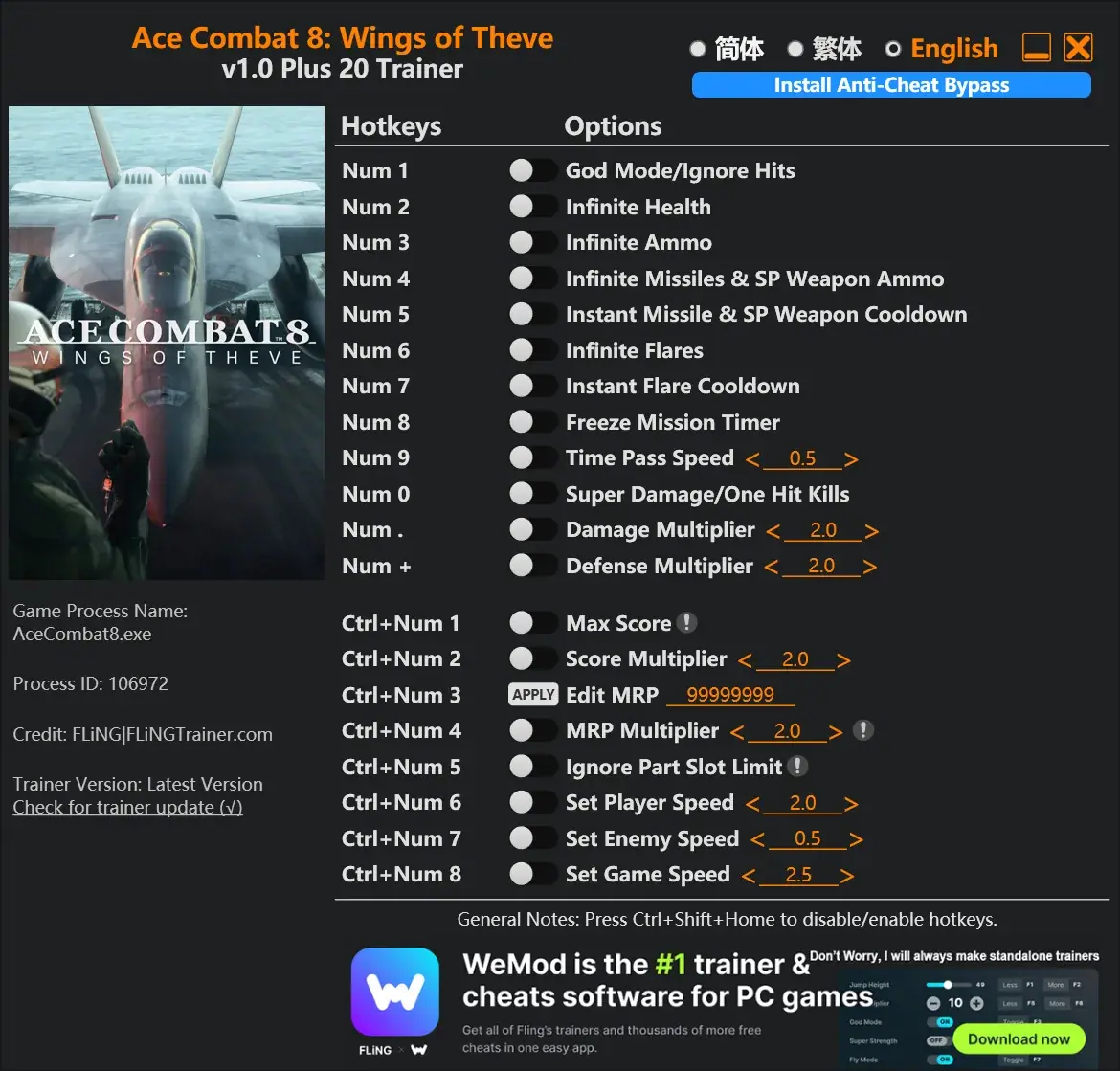
The FLiNG trainer displays its hotkeys, option groups, game process details, and anti-cheat bypass control.
| Choice | Setup model | Confirmed feature range in the current information | Important limitation |
|---|---|---|---|
| FLiNG standalone trainer | Run a separate trainer and install its anti-cheat bypass by selecting the protected game executable | 20 options covering survival, ammunition, flares, timers, damage, score, MRP, speed, and the part-slot limit | The page labels it for game version v1.0+, which does not guarantee compatibility after a game update |
| All in One Cheat Menu | Open a Cheat Engine table, allow its Lua script, then activate its tactical menu | Flight, weapons, targeting, mission, hangar, campaign, camera, and performance controls | Requires Windows, the Steam version, 64-bit Cheat Engine with Lua, and a compatible game build |
| Cheat Happens trainer | Use its included launcher and wait until the main menu before activation | Health, invincibility, icing, missiles, flares, time, score, MRP, damage, speed, and editable player fields | Access and support conditions belong to that provider; player reports show that individual options can fail |
| Cheat Evolution or Fearless Revolution table | Use the provider's bypass and trainer or table instructions | Health, ammunition, cooldowns, score, MRP, damage, defense, and speed controls are listed | Reports disagree about health and flare functions, so do not treat the option list as proof that every function works |
Choose by the smallest feature set that solves your problem. A standalone trainer is simpler if you only want ammunition or MRP changes. The All in One table exposes far more controls, but its wider reach also creates more ways to alter saved progression or interfere with a scripted mission.
Prepare a safe offline test
Before installing anything, make a copy of your current save data and keep it outside the game's active save location. Do not overwrite that backup after enabling MRP, ownership, aircraft, weapon, skin, mission-access, or campaign-menu controls. Those changes can be written into the save and may not disappear when a table is disabled.
Also record the game build you are currently running, close online mode, and test in a campaign mission you can replay easily. ACE COMBAT ONLINE has separate progression and save data from Campaign Mode, but that separation is not permission to bring modified software into multiplayer. Keep the trainer out of online sessions entirely.
Do not disable security software merely because a download is blocked. Confirm that the file came from the intended provider, scan it, read the provider's current instructions, and stop if the archive, launcher, or requested executable differs from the documented setup.
Set up the FLiNG standalone trainer
The available FLiNG page gives this provider-specific sequence:
- Start the trainer and choose Install Anti-Cheat Bypass.
- Select
start_protected_game.exein the ACE COMBAT 8 root folder and save the change. - Launch or restart the game through the method the trainer expects.
- Reach the campaign environment, enable only one option, and confirm that it changes the intended value.
- Disable that option and verify that normal behavior returns before adding another cheat.
Its documented keypad controls are grouped logically:
- Survival: God Mode/Ignore Hits, Infinite Health, and a Defense Multiplier.
- Weapons: Infinite Ammo; Infinite Missiles and special-weapon ammo; instant missile and special-weapon cooldown; Infinite Flares; and instant flare cooldown.
- Mission values: Freeze Mission Timer, Time Pass Speed, Max Score, Score Multiplier, Edit MRP, and MRP Multiplier.
- Combat and motion: Super Damage/One Hit Kills, Damage Multiplier, Set Player Speed, Set Enemy Speed, and Set Game Speed.
- Loadout: Ignore Part Slot Limit.
The visible list confirms what the controls are called, not that each control works in every mission phase. One comment says the timer controls did not solve a short scripted combat window. Use Freeze Mission Timer for the general timer only when it actually changes the displayed value; do not assume it freezes hidden triggers, dialogue sequences, or phase-specific deadlines.
Set up the All in One Cheat Menu
The Nexus-hosted All in One menu uses a Cheat Engine table rather than a standalone trainer:
- Download and extract
AceCombat8.CT. - Open it in 64-bit Cheat Engine.
- Allow the table's Lua script when prompted.
- Launch the game and select MASTER ARM.
- Enter a mission before using flight, weapon, or targeting controls.
- Press Ctrl+Alt+H to show or hide the tactical interface.
The table says it does not require UE4SS or a separate mod loader. Its feature groups include aircraft repair, ally health, ammunition and reserve changes, cooldown controls, targeting assistance, score and timer settings, MRP, aircraft and equipment grants, mission access, save backups, camera fields, and aircraft-performance adjustments. Because that is a broad set, activate only the section you need.
Campaign grants require an aircraft-tree or MRP menu. After a grant, leave and reopen the relevant game menu so its contents can refresh. Do not repeatedly press a grant control just because the first screen did not update. The available notes also label some campaign actions as under investigation and describe the targeting aid as session-dependent; neither should be presented as a guaranteed outcome.
Use a controlled first-run sequence
A controlled test makes failures easier to diagnose:
- Launch the game cleanly once after an update and confirm that the campaign loads without the trainer.
- Exit, create a fresh save backup, then use the provider's documented offline launch path.
- Wait for the activation point specified by the trainer. Cheat Happens says not to activate before the main menu shows the Start option; the All in One table expects Master Arm and then a mission for flight controls.
- Enable one easy-to-observe, reversible option, such as ammunition or flare cooldown.
- Complete a small objective and confirm that targets, dialogue, phase changes, and checkpoints still advance.
- Turn the option off before the result screen. Relaunch cleanly and inspect the save, aircraft tree, MRP, and mission availability.
Avoid beginning with invincibility, mission access, unlock-all, huge MRP edits, or score manipulation. Those controls either touch progression or are among the functions associated with conflicting reliability reports.
Match trainer options to the actual goal
| Goal | Lowest-scope option to try | What it does not guarantee |
|---|---|---|
| Practice weapon employment | Ammunition or cooldown control | A scripted phase may still enforce its own timing or target conditions |
| Learn a difficult encounter | Flares, defense, or a modest damage adjustment | Health or invincibility may behave differently across aircraft and missions |
| Reduce aircraft-tree grind | A limited MRP edit after a save backup | It does not prove that aircraft, parts, or mission access will refresh correctly |
| Test loadouts | Part-slot or owned-equipment controls | Granted items can affect the save and may require a menu refresh |
| Capture a specific camera view | The table's separate camera or field-of-view controls | A saved profile is not proof of compatibility after the next game update |
| Replay a mission more quickly | Player or game-speed controls | Faster simulation can disrupt your timing and does not guarantee scripted events will stay synchronized |
For ordinary campaign help, use the least invasive control and keep normal objective logic intact. If your real goal is a rank, clean completion, or repeatable strategy, a modified score, frozen timer, or damage multiplier will not demonstrate that the same result is achievable without the trainer.
Troubleshoot a trainer that does not work
The trainer finds the game but hotkeys do nothing
First confirm that you followed the launch path for that exact provider. The available discussions repeatedly connect inactive controls with a missing bypass. Next check the activation point: some tools expect the main menu, while mission-specific controls may not resolve their values until you enter a mission. If the game updated after the trainer or table was published, assume a compatibility problem until the provider documents support for the new build.
Do not combine bypasses, launchers, or tables from different providers during diagnosis. Return to a clean launch, choose one tool, and retest one option.
Infinite health or flares fail
The player reports conflict: some users say infinite flares or health failed, while another author reported that flares worked in their setup. That evidence does not support a universal fix. Test the paired cooldown option only if the trainer documents it, note the aircraft and mission, and stop after a failed activation instead of stacking more health or defense cheats. Use the provider's support channel with your exact game build and reproduction steps.
A mission target or phase does not appear
Player reports describe progression blockers while trainers were active: secondary tread targets reportedly failed to appear in one land-battleship sequence, and another report associated Infinite Health with a later mission failing to progress after a group of enemies was shot down. These are individual reports, not confirmed engine rules, but they justify a conservative recovery path:
- Quit the mission and close both the trainer and the game.
- Restore the provider's normal launch configuration or original protected executable.
- Relaunch without any trainer or bypass.
- Replay from a clean checkpoint or mission start.
- If the objective now advances, finish that mission cleanly before experimenting again.
Turning off a visible toggle may be insufficient if the bypass or patched process is still active. A full clean relaunch is the meaningful comparison.
A timer cheat does not affect the urgent phase
A displayed mission timer and a scripted phase condition may not be the same value. A player reported a timed fighter sequence that continued despite timer controls. Do not infer that another timer field exists or promise a workaround. Disable the timer option and solve that phase with normal target prioritization, aircraft choice, or difficulty settings covered by the game itself.
Granted content or MRP does not appear
For the All in One table, use the required aircraft-tree or MRP menu, then leave and reopen it. If the value still does not appear, stop issuing grants. Restore your backup before testing again. A trainer showing an enabled control is not proof that the game accepted or safely saved the change.
Protect campaign progress and return to a clean game
When you finish testing, close the game before closing or altering the trainer setup. Restore the original anti-cheat or launcher file using the provider's documented backup, remove the provider-specific replacement, and launch the game normally. If you are unsure which files changed, use the platform's file verification only after protecting your save backup.
Then check four things in a clean campaign session: the expected MRP total, owned aircraft and parts, available missions, and the next objective in any mission that previously stalled. If a progression edit has already been saved, disabling the trainer will not necessarily reverse it. Restore the pre-trainer save when preserving legitimate progression matters more than keeping the modified unlocks.
The reliable rule is simple: one provider, one offline session, one change at a time, and one untouched backup. That will not make an incompatible trainer work, but it gives you a clear recovery path when an option fails or a mission script stops advancing.