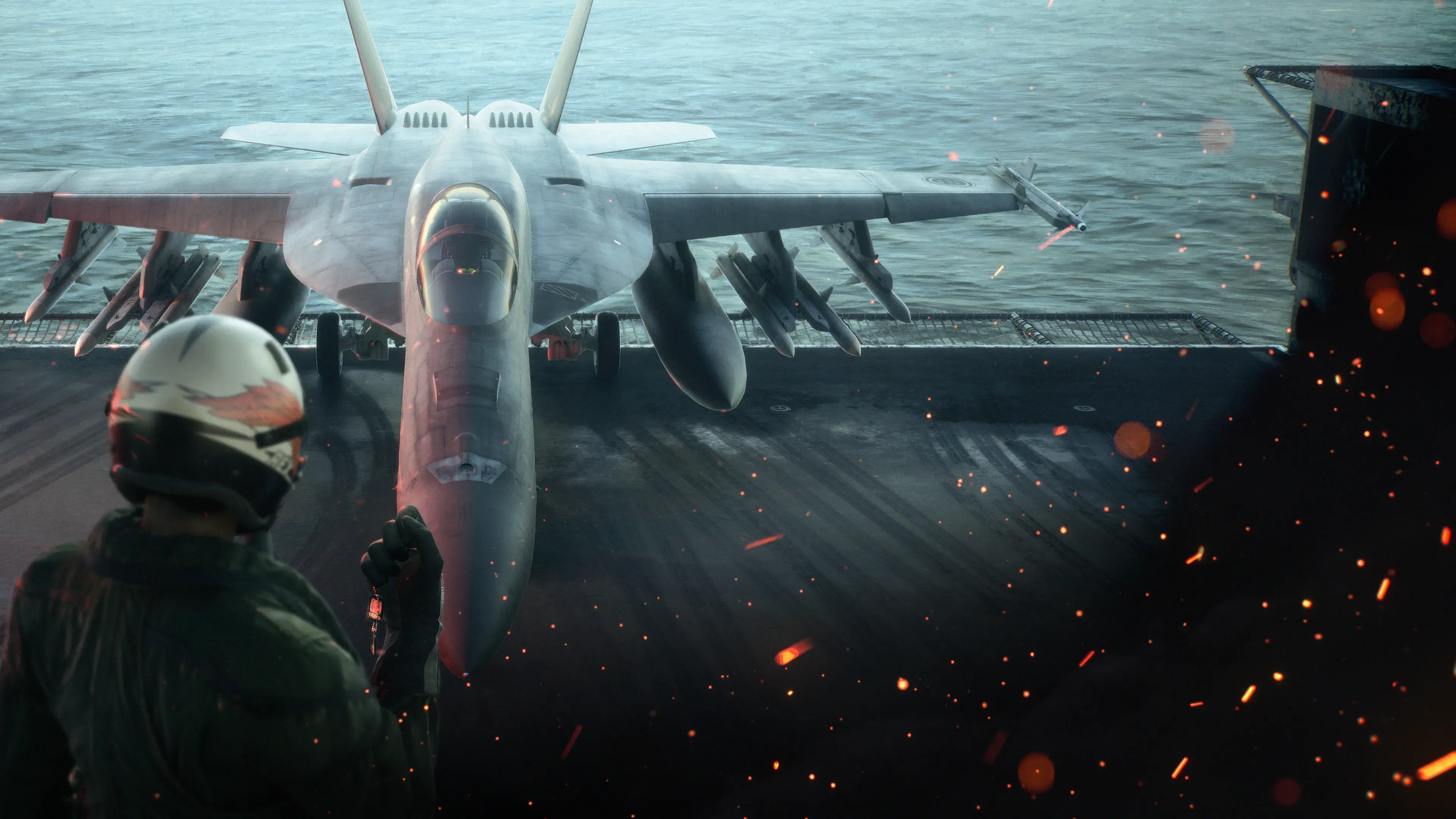
To change an aircraft skin in ACE COMBAT 8 Campaign, finish the campaign once, then open Mission Menu → Aircraft Sets → choose a slot → Edit Aircraft Set → Select Skin. Pick an unlocked skin for that aircraft and confirm the selection. If you are still on your first campaign playthrough and cannot find Aircraft Sets, complete the story before trying to use that customization route.
ACE COMBAT ONLINE has its own aircraft customization and progression. Use the customization options for the aircraft you own in Online rather than assuming the Campaign menu path applies there. Some cosmetics explicitly support both modes, but their eligibility and requirements matter. Owning a skin, selecting the correct aircraft, and having access to the relevant mode's customization are three separate checks.
Unlock Campaign customization first
Campaign skin editing becomes available after the first campaign clear. The final mission is Mission 30, Song of Wings; complete it and allow the ending sequence and credits to finish. Aircraft Sets then provides the route for changing the appearance of aircraft used after the story. You do not need a separate combat walkthrough to understand the cosmetic requirement itself.
This explains an otherwise confusing situation: a skin can be earned before you can apply it through Campaign's full customization menu. The reward and the editing permission are different stages. Seeing a reward notification during the story does not mean that the Aircraft Sets menu should already be available during your first playthrough.
If the menu is absent, check your campaign completion state before investigating the individual skin. A missing menu and an unavailable skin are different problems. Clearing the campaign addresses the first. The second requires checking the aircraft, the cosmetic's unlock condition, and whether it supports the mode you are using.
For the two aircraft skins in the Customizable Cosmetic Set, the campaign condition is also explicit: they become usable in Campaign after all campaign missions have been completed. Having the Deluxe Edition does not bypass that condition. Finish the story first, then examine the skins on their matching aircraft.
Select the skin through Aircraft Sets
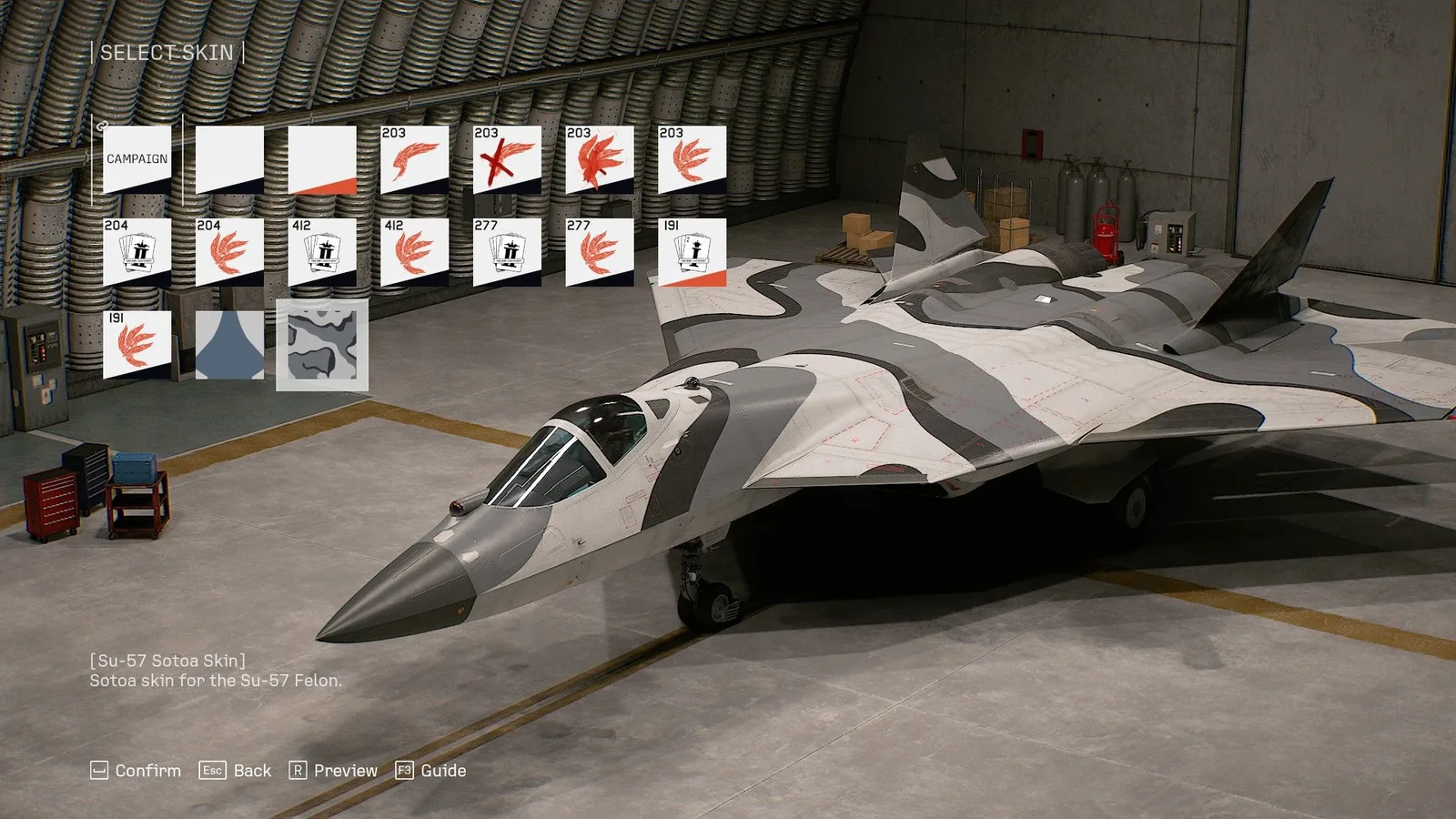
The highlighted skin has an aircraft-specific name and an on-aircraft preview.
Aircraft Sets organizes the aircraft configuration you want to use. Choose the slot you intend to modify, make sure it contains the aircraft you want, and open its editing options. Select Skin takes you to the available liveries for that aircraft. The skin selection belongs to that aircraft configuration, so begin with the set you actually plan to take into the mission.
Follow this sequence:
- Open the Campaign Mission Menu after your first campaign clear.
- Enter Aircraft Sets.
- Choose the slot containing the aircraft you want to customize.
- Open Edit Aircraft Set.
- Choose Select Skin.
- Select an unlocked livery for that aircraft and confirm it.
- Return to the configuration and check that the intended appearance is shown.
If the slot is empty, select an aircraft before trying to choose its skin. A skin is tied to an aircraft model, rather than being a universal paint item that can be applied to any fighter. For example, a skin named for the F-4E should be checked on the F-4E, not on a different aircraft that happens to have a similar shape or squadron history.
When you compare options, use the skin's name and the aircraft preview together. The name identifies the selection, while the preview helps you check its actual appearance. A livery may change markings as well as color, so look at the complete aircraft rather than only a small patch of the fuselage. Confirm the choice you want before leaving the menu.
Keep the aircraft set and the appearance connected
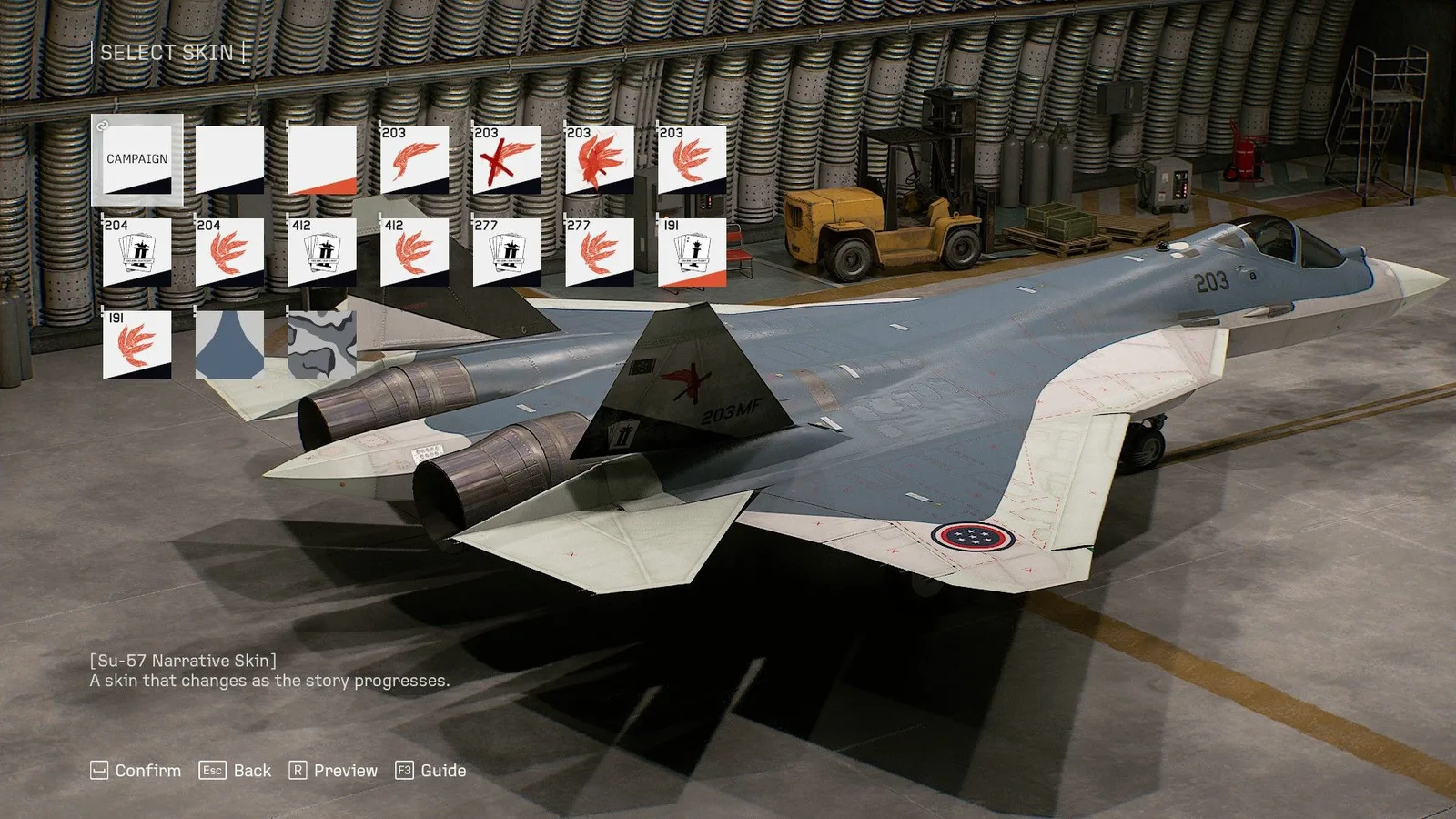
Check the named livery on the aircraft in the set you intend to use.
An Aircraft Set includes more than a paint choice. It is the configuration you are editing, with its aircraft and other setup options. That makes choosing the correct slot important. If you customize one slot and then enter a mission with another, the visible result can look as though the skin did not apply even though you edited the first slot successfully.
Before changing anything else, verify the relationship between the slot, aircraft, and skin. A simple check is to return to the same set after confirmation and look at the aircraft shown there. Then select that set for the mission you intend to play. This isolates the cosmetic change from changes to weapons, parts, or another saved configuration.
If you keep several sets for the same aircraft, treat them as separate configurations while checking the result. Do not assume that a change made to one set automatically rewrites every other configuration you have prepared. The reliable completion check is the appearance of the aircraft in the set you have selected, followed by the aircraft you actually use.
The skin is a visual livery. This guide does not assign it a weapon bonus, extra defense, or an aircraft handling improvement. Choose the appearance you want while making combat preparation decisions through the appropriate aircraft, weapon, and part options. Keeping those decisions distinct makes both customization and troubleshooting clearer.
Change an emblem separately when the skin allows it
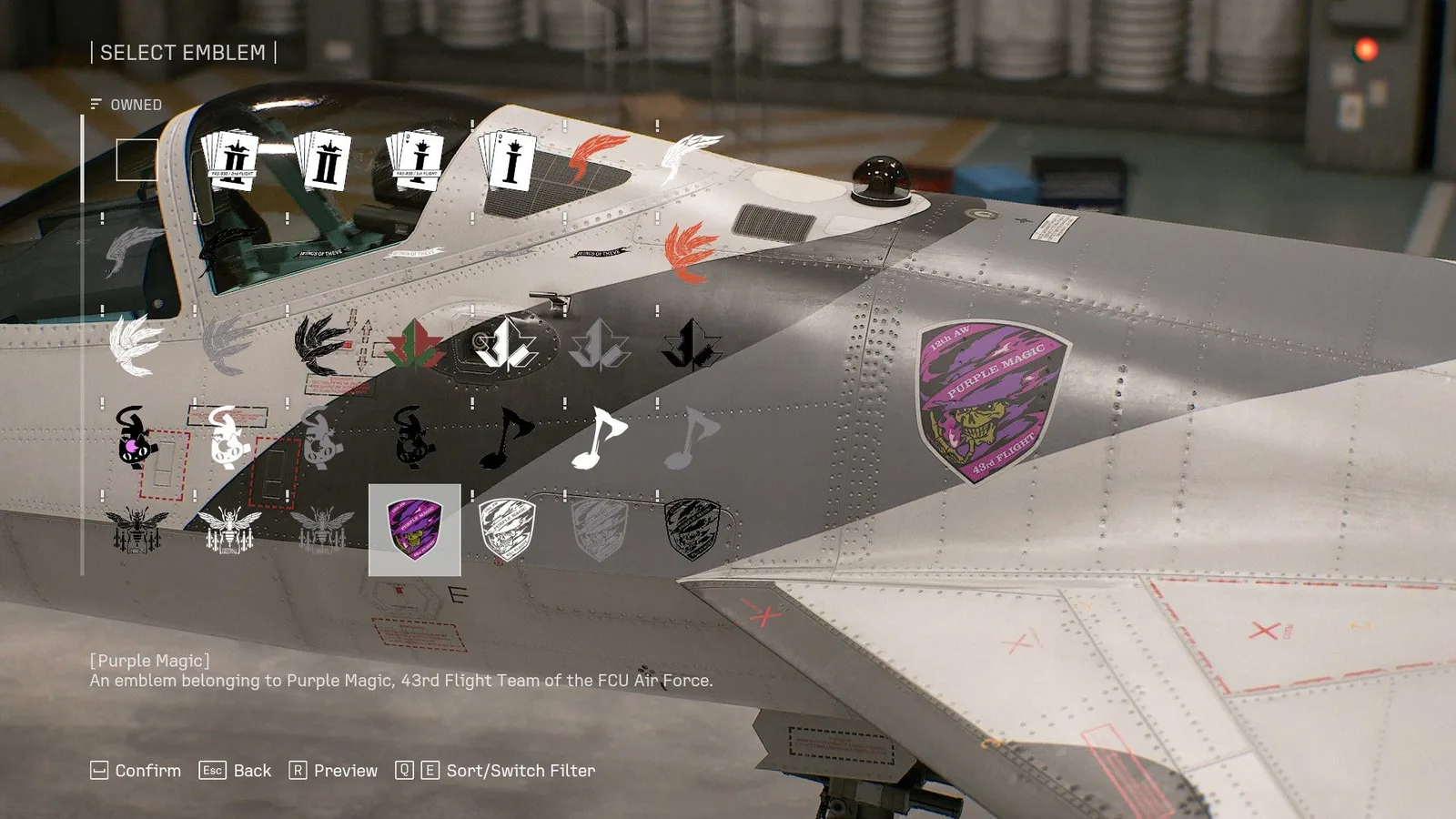
Select Emblem is separate from the skin selection.
Aircraft skins and emblems are related appearance options, but they are not interchangeable. A skin supplies the aircraft's visual livery. An emblem is a marking that can be applied where the selected skin supports emblem customization. Some skins include their own markings or limit separate emblem changes.
Use Select Emblem within Edit Aircraft Set when you want to change the emblem. Choose an available emblem and examine its placement on the aircraft before confirming. If the combination does not behave as expected, consider whether the chosen skin permits a separate emblem rather than assuming the emblem inventory is missing.
A practical order is to choose the skin first, then check the emblem. That lets you judge the final combination on the livery you will actually use. If you reverse the order and then change to a skin with different markings, you may need to check the emblem again to understand what remains visible.
Weathering is another appearance feature available in Online customization. Keep its purpose separate too: adjusting how worn the aircraft looks is a different operation from choosing its livery or emblem. You can review the available visual options together without treating them as one shared unlock condition.
Apply the two Customizable Cosmetic Set aircraft skins
The Customizable Cosmetic Set contains two named aircraft liveries. Their matching aircraft and mode eligibility are the most important details when checking whether the content is usable:
| Cosmetic | Matching aircraft | Mode condition |
|---|---|---|
| Mobius Squadron 25th Anniversary Skin | F-4E Phantom II | Online, and Campaign after all campaign missions are completed |
| Team Zvezda Skin | F/A-18C Hornet | Online, and Campaign after all campaign missions are completed |
| Tasha lobby avatar outfit | Online lobby avatar | ACE COMBAT ONLINE only |
| Missile Smoke [Scarlet] | Aircraft upgrade part | ACE COMBAT ONLINE only |
The Tasha outfit is not an aircraft skin. Check it in the context of your online lobby avatar. Scarlet missile smoke is also not a paint scheme; it changes the color of missile smoke when the part is equipped to an aircraft in Online. Looking for either item in Select Skin is therefore the wrong completion check.
The Deluxe Edition includes the Customizable Cosmetic Set. If you already own that edition, verify the included content before buying the set separately. A duplicate purchase is not a demonstrated solution to a campaign-clear restriction or to checking the wrong aircraft. Start with the content you own, the matching aircraft, and the mode condition.
Customize aircraft in ACE COMBAT ONLINE
ACE COMBAT ONLINE uses progression and save data separate from Campaign. Its visual customization covers skins, emblems, and weathering for individual aircraft. Open the Online aircraft customization options for an aircraft you have acquired in that mode and review the items available to it.
The Campaign Aircraft Sets route should not be copied as a button-by-button Online instruction. Use the options displayed in Online's own menus. Keeping the mode clear is more helpful than giving an unverified chain of menu names that could send you to the wrong place.
Separate progression also means that an unlock notification in one mode is not sufficient proof that every cosmetic transfers to the other. The Mobius Squadron and Team Zvezda skins are explicitly documented examples that support both modes, with the Campaign completion requirement. Check other items individually rather than generalizing from those two examples.
If you are trying to identify a particular Online livery, note its aircraft model and exact name. Those details help distinguish a missing entitlement from a different color variant, a skin for another aircraft, or an item restricted to a particular mode. You do not need to change your Campaign configuration to investigate a cosmetic that belongs to your Online aircraft.
Earn more skins without confusing the unlock with the menu
Campaign progression, specific objectives, and named enemy aces can provide additional skins. Named aces appear on Veteran difficulty or higher and can require mission-specific conditions. Defeating one can unlock the associated aircraft's paint scheme, but you also need to complete the mission for the corresponding Assault Record to register.
Those conditions belong to individual ace and mission guides. This page explains how to apply a skin after it is available, rather than supplying a complete ace-hunting route. When you seek a particular livery, identify the named aircraft and its condition first. Then return to the matching aircraft's Select Skin menu after satisfying the requirement.
Campaign completion can also produce a group of rewards. Review that reward list as an inventory update: it tells you what has been added, while Aircraft Sets provides the place to apply a Campaign-compatible livery. Treating those as two connected steps avoids the expectation that every reward notification instantly changes your aircraft's appearance.
Online has its own ways of obtaining cosmetics, including available store content and gameplay rewards. Review the requirement attached to the specific item you want. This guide does not promise an unverified drop rate, a universal purchase price, or that a particular seasonal reward is always available.
Diagnose a skin that still does not appear
Start with the symptom you can actually see. If Aircraft Sets is missing, check the first campaign clear. If Select Skin opens but has few choices, check whether you have unlocked additional liveries for that aircraft. If a named cosmetic is absent, check the matching aircraft and mode. If the menu shows the skin but your sortie uses a different appearance, verify which set you selected.
| Symptom | First check |
|---|---|
| Aircraft Sets is absent in Campaign | Complete the campaign once |
| A skin was earned but cannot yet be applied | Confirm Campaign customization is unlocked |
| A DLC skin is missing from an aircraft | Check the exact aircraft model named by the cosmetic |
| Tasha outfit is absent from Select Skin | Check the Online lobby avatar context |
| Scarlet smoke is absent from Select Skin | Check the Online aircraft part context |
| A confirmed skin is not shown in the sortie | Check the Aircraft Set chosen for that sortie |
Change one thing at a time while troubleshooting. That makes it easier to identify which check solved the problem. The task is complete when the intended livery appears on the correct aircraft in the configuration and mode you actually use. You can then return to mission preparation with your appearance settled, without treating cosmetics as a reason to rebuild the rest of your aircraft setup.