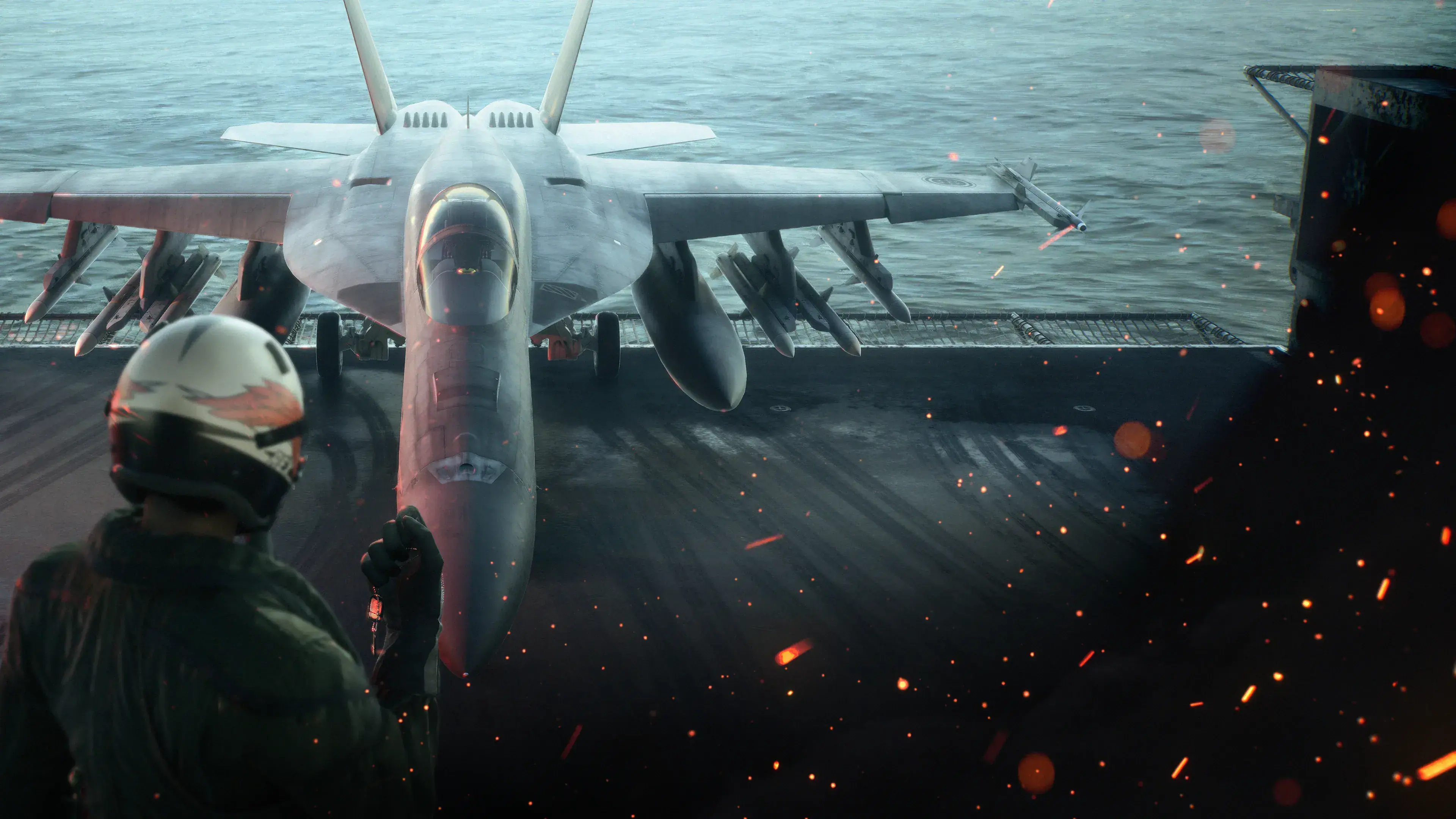
Ace Combat 8 performance depends first on meeting an unusually strict PC baseline: Windows 11, an SSD, DirectX 12 with Shader Model 6.6, and a graphics card with hardware ray-tracing support are all listed as requirements. The official minimum target is 1080p with upscaling, Low settings, and 30 fps; the recommended target is 1080p with upscaling, Medium settings, and 60 fps. Both targets warn that graphics-intensive scenes can still lower the frame rate.
If your system meets those requirements but performance is uneven, test the problem before applying community configuration edits. Player reports describe different symptoms in campaign terrain, explosion-heavy combat, cutscenes, loading, audio, and crashes. They do not establish one universal cause or fix.
Treat a closing game as a stability problem using PC crash checks, and an Online disconnect separately using ST-3100001 troubleshooting. Configuration modifications belong to the PC mods guide.
Version scope — October 7, 2026: This page was edited from supplied research. No numbered game build or independent playtest is recorded for this guide. Check the current in-game descriptions and your platform before applying build-sensitive conditions.
Start with the official PC performance targets
Use the official targets as baselines, not promises. They specify an estimated combination of resolution, upscaling, preset, and frame rate. Raising any part of that combination increases the workload, so a system near the minimum specification should not be judged at native resolution or higher presets first.
| Target | Minimum specification | Recommended specification |
|---|---|---|
| Operating system | Windows 11, 64-bit | Windows 11, 64-bit |
| Processor | Intel Core i7-10700K or AMD Ryzen 5 3600X | Intel Core i7-12700K or AMD Ryzen 5 5600X |
| Memory | 16 GB RAM | 32 GB RAM |
| Graphics | GeForce RTX 2060 6 GB or Radeon RX 6600 XT 8 GB | GeForce RTX 3070 8 GB or Radeon RX 6800 16 GB |
| Graphics API | DirectX 12 | DirectX 12 |
| Required features | SSD, hardware ray tracing, Shader Model 6.6 or higher | SSD, hardware ray tracing, Shader Model 6.6 or higher |
| Estimated result | 1920×1080 with upscaling, Low, 30 fps | 1920×1080 with upscaling, Medium, 60 fps |
Install the game on an SSD and leave enough additional free space for normal system and game operations.
A hardware ray-tracing-capable GPU is part of the published requirement. An unofficial configuration that disables individual rendering features should not be treated as proof that an older, unsupported GPU will work correctly.
Identify the symptom before changing settings
“Low FPS” can describe several different problems. Separate them because each needs a different test:
- Consistently low frame rate: performance is poor throughout a mission, including quiet scenes. Begin with the official Low or Medium target for your hardware tier.
- Short hitches: the average frame rate is acceptable, but movement pauses or feels uneven. Record where the hitch happens and whether it repeats.
- Scene-dependent drops: performance falls over dense inland terrain, around many targets, or during large explosions. Similar patterns appear in individual player reports and one professional review, but they are not guaranteed on every PC.
- Campaign-only slowdown: one report described acceptable multiplayer performance but severe campaign slowdown over inland terrain. Test both modes before blaming the entire installation or one component.
- Cutscene hitching or audio loss: these may occur without matching combat performance. Treat them as separate symptoms rather than assuming that an FPS change will repair both.
- Crashes or out-of-video-memory errors: these are stability problems, not merely low FPS. The publisher acknowledged that some PC players were experiencing crashes, but the current information does not contain a verified universal fix or a confirmed current patch number.
Do not assume that Easy Anti-Cheat, Denuvo, Unreal Engine 5, or a memory leak is the cause. Those explanations appear in community discussion, but the available information does not resolve them.
Build a repeatable performance test
A controlled test tells you whether a change helped and prevents a smooth ocean sortie from hiding problems that return over land.
- Restart before testing. Begin from a clean launch, especially if the slowdown appears only after extended play.
- Choose one repeatable campaign segment. Prefer a section that reliably shows your problem, such as inland terrain, a target-heavy battle, a first-person cinematic, or a large explosion.
- Record the starting configuration. Note resolution, upscaling choice, graphics preset, frame-rate cap, display mode, driver version, and whether recording or streaming software is active.
- Observe more than the average. Write down the usual frame rate, the lowest visible drop, hitch locations, loading behavior, audio interruptions, and whether controls feel delayed after a drop.
- Repeat the same segment. A different mission, weather scene, or target count is not a clean comparison.
- Change one setting or system condition at a time. If you alter resolution, preset, cap, driver, and virtual memory together, you will not know which change mattered.
- Retest campaign and multiplayer separately when symptoms differ. Their workloads and situations may not reproduce the same issue.
A professional review in the available information reported mostly stable 1440p performance on a Radeon RX 6600, Ryzen 7 7700X, and 32 GB of RAM, with occasional first-person cutscene hitching and drops below 60 during very large explosions. That is one tested configuration, not a guarantee for every RX 6600 system.
Tune settings in a useful order
Start from a supported baseline and work upward. The menu options available to you may differ, so use this order only for settings that the game exposes.
- Match the official target first. Near minimum hardware, begin at 1920×1080 with upscaling, Low, and a 30 fps target. Near recommended hardware, begin at 1920×1080 with upscaling, Medium, and a 60 fps target.
- Confirm the intended resolution and display mode. One community report associated an unexpectedly high initial resolution and borderless presentation with instability. That is not an official diagnosis, but checking the active resolution costs nothing.
- Lower the preset before chasing isolated tweaks. A preset change provides a clear baseline. Once the problem is reproducible, raise settings gradually instead of changing many options at once.
- Use upscaling as part of the target. Both official estimates explicitly include upscaling. Native-resolution results should not be compared directly with those estimates.
- Choose a sustainable frame-rate cap. A cap cannot repair severe stutter, but it can stop the system from pursuing a rate it cannot maintain. Test a cap that remains stable during your demanding route, not only in an empty sky.
- Test effects-heavy moments. Multiple player accounts mention drops around explosions, particles, close ground attacks, or target-rich scenes. A setting that looks stable during takeoff may still fail this stress test.
- Test inland terrain separately. One player with a Radeon RX 6500 XT, Ryzen 5 5500, and 16 GB of RAM reported a much worse campaign experience over land than over open ocean. Treat this as a diagnostic clue, not an established rule for the game.
If lowering the preset and rendered resolution barely changes the problem, stop assuming that raw GPU load is the only cause. Compare memory use, background activity, driver behavior, mission type, and the exact scene where the drop begins.
Check memory, storage, drivers, and crashes
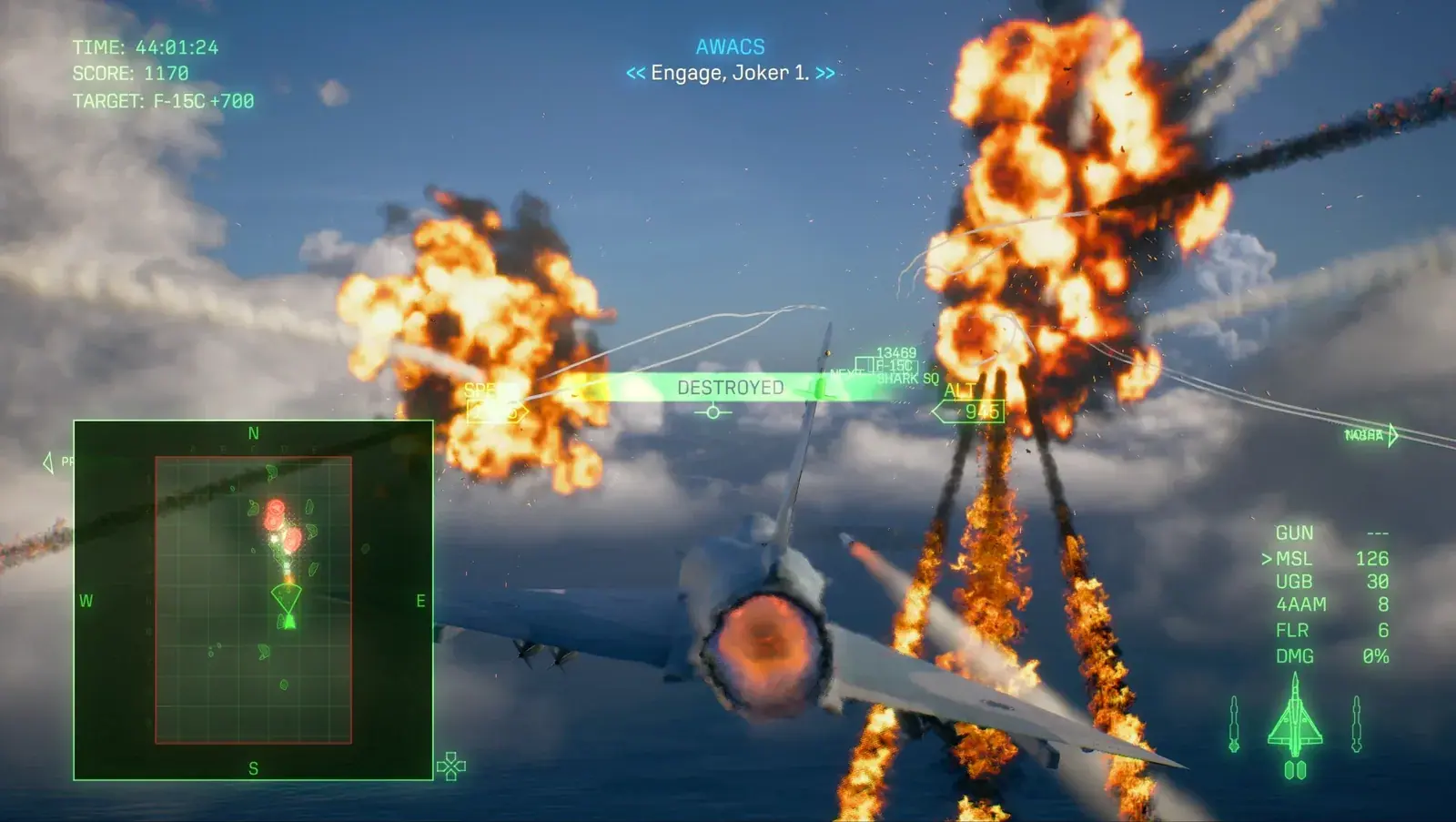
Repeat a demanding combat encounter like this when checking frame-rate stability.
The official minimum lists 16 GB of RAM, while the recommended specification lists 32 GB. Community reports disagree about actual memory consumption and whether a leak exists. One long session reportedly did not degrade over time, while other players attributed crashes, loading problems, or heavy use to memory behavior. That conflict means you should measure your own session rather than label every slowdown a memory leak.
- Confirm that the game is installed on an SSD, because an SSD is an explicit requirement.
- Leave the Windows paging file enabled unless you have a specific reason to manage it manually. Community users reported benefits after changing virtual memory, but they proposed different sizes and hardware-specific values.
- If you alter virtual memory, record the original configuration, use a value appropriate for your system, restart Windows, and keep the change reversible. A copied number from another PC is not a guaranteed fix.
- Install a stable graphics driver that supports your GPU and Windows version, then repeat the same test. One player reported that a driver update did not solve the issue, so an update should be treated as a test rather than a promised repair.
- Stop recording or streaming temporarily when diagnosing. One account noted extra processor overhead while streaming during target-heavy missions.
- For crashes, preserve the error text, mission or loading stage, graphics settings, driver version, and hardware details. That record is more useful than reporting only that the game “runs badly.”
Audio that cuts out or changes with the camera should be logged separately. The available discussion contains speculation about storage and drivers, but no verified general cause.
Treat Engine.ini edits as an unsupported last resort
A community post reported a large gain after adding numerous rendering commands to Engine.ini, including commands intended to disable ray tracing, Lumen, reflections, shadows, ambient occlusion, and distance-field features. The same player warned that some cutscenes looked wrong afterward. This is an individual workaround, not an official configuration or a verified universal solution.
Before considering such an edit:
- Finish the controlled tests above and save screenshots of your normal settings.
- Back up the original configuration and know how to remove the custom file.
- Do not combine the edit with several other untracked changes.
- Expect visual defects or other unintended behavior.
- Retest the same campaign route, cutscenes, multiplayer, and game launches.
- Remove the edit before judging a later patch or driver update.
Do not mark the file read-only until you understand that doing so may prevent the game from updating its configuration. Avoid presenting unofficial commands as a way to make unsupported hardware compatible.
Keep the configuration that survives the worst scene
Your final setup should pass the demanding route, not merely the opening minutes of a quiet sortie. Keep a short record containing the resolution, upscaling mode, preset, cap, driver, memory configuration, test mission, and observed problem areas. Retest after a game or driver update instead of assuming the old result still applies.
A useful final check is simple: launch cleanly, load the repeatable campaign segment, fly over the terrain that previously caused trouble, trigger an effects-heavy encounter, watch a known cutscene, and then test multiplayer if it showed different behavior. If performance remains stable through that sequence, preserve the configuration. If it fails, revert the latest change and continue from the last known-good baseline.