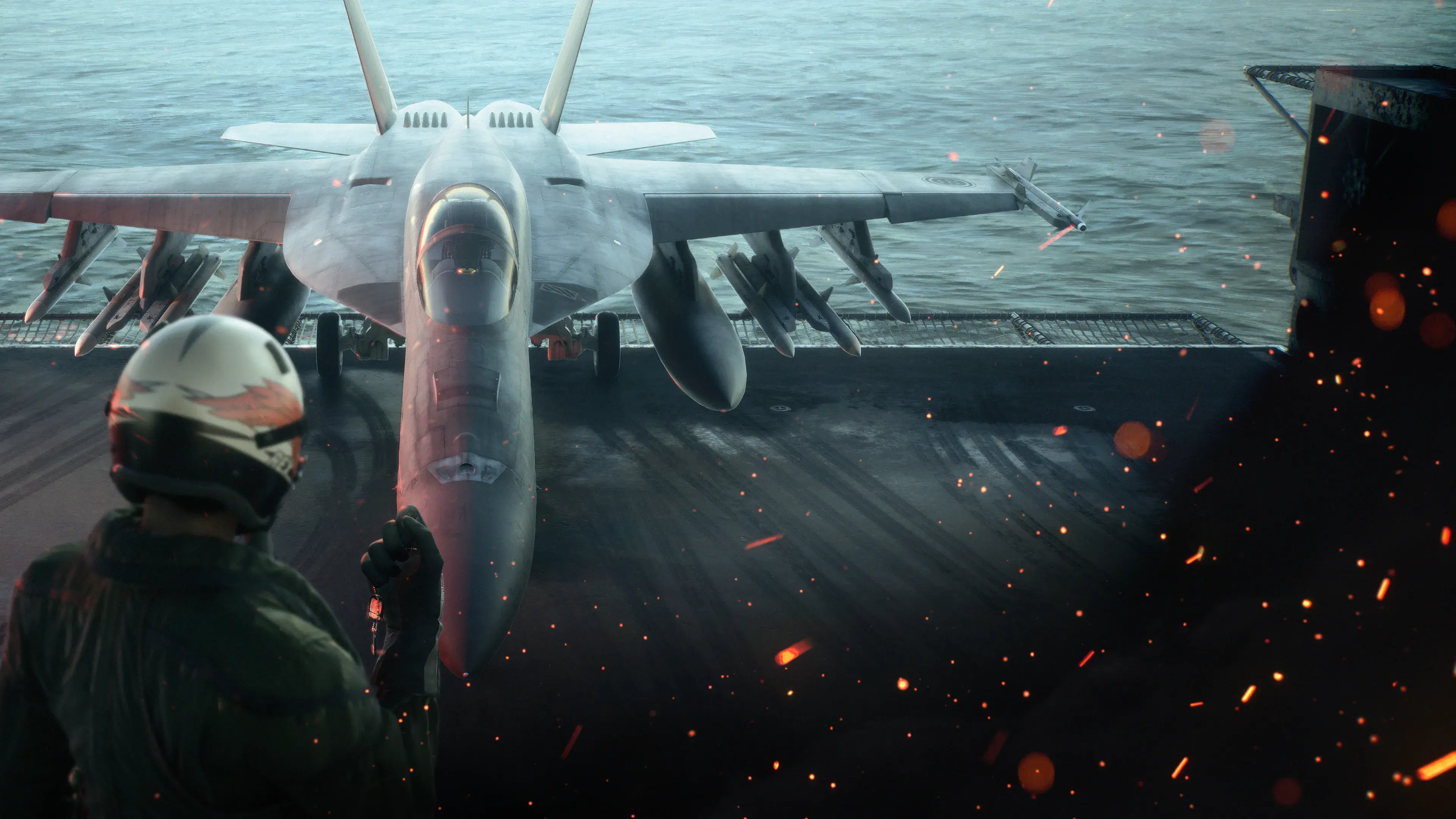
Ace Combat 8 has two flight control modes: Standard turns the aircraft when you push left or right; Expert rolls the aircraft, then uses pitch to turn. These settings are separate from Rookie, Pilot, Veteran and Elite difficulty. Start with Standard if you want simpler steering, or Expert if you want direct control over banking and pitching.
On PS5, the core inputs are R2 to accelerate, L2 to slow down, Triangle to change targets, Square to change weapons, Circle to fire missiles or the selected special weapon, and Cross to fire the gun. Check your current in-game layout for camera, countermeasure and customized bindings. The PC keyboard layouts circulating in older discussions can include Ace Combat 7 settings; they should not be copied as AC8 defaults.
Choose the flight mode before changing bindings
Standard and Expert change the relationship between your steering input and the aircraft. They are the first setting to check when a button works but the resulting movement feels wrong.
With Standard selected, horizontal stick movement produces a turn in that direction. This reduces how much attention you need to spend managing the aircraft's attitude while learning target selection and weapon switching. Use it if your immediate problem is keeping the aircraft pointed where you intend. There is no need to learn a more involved steering method before you can understand a mission's objectives.
Expert separates the rolling movement from the pitching movement. Push horizontally to bank the aircraft, then pitch through the turn. This gives you more direct control over orientation and supports a wider range of maneuvers. It also means that moving the stick sideways does not have the same result as it does in Standard. If you keep rolling past the angle you wanted, practice leveling the wings before attempting another turn.
| What you want to do | Suitable starting mode | What to practice |
|---|---|---|
| Steer left and right with less coordination | Standard | Follow a direction, then release the turn before overshooting. |
| Control bank angle and pitch separately | Expert | Bank toward the direction of travel, pitch through the turn, then level out. |
| Move from simplified steering to direct aircraft control | Expert after a familiar Standard sortie | Repeat the same route with the same aircraft so the input change is easier to judge. |
You can change your flight control choice later. Treat the first selection as a starting point. A useful transition is to keep the aircraft and difficulty unchanged, switch the control mode, and practice a turn you already understand. Changing several settings together makes it difficult to identify which one improved the result.
PS5 controls for the actions used most often
The following PS5 layout covers basic flight and combat actions. Cross means the face button marked with an X on a PlayStation controller. It is separate from the Square button used to switch weapons.
| Action | PS5 input | What to check while practicing |
|---|---|---|
| Accelerate | R2 | Confirm that you can increase speed without losing your steering input. |
| Decelerate | L2 | Slow deliberately instead of remaining on the brake throughout a pursuit. |
| High-G turn | Hold L2 and R2 while turning | Notice the loss of speed and release the maneuver once the direction change is complete. |
| Fire missiles or the selected special weapon | Circle | Confirm which weapon is selected before pressing fire. |
| Fire the machine gun | Cross | Keep this distinct from the missile input. |
| Switch target | Triangle | Watch the selected target change before committing to an attack. |
| Switch weapon | Square | Check the weapon display after switching. |
| Issue wingman commands | Directional buttons | Read the command prompt instead of assuming every direction has the same function as another game. |
Learn target selection and weapon selection as two separate actions. Triangle changes the target you are engaging. Square changes the weapon you will use against it. Pressing the wrong one can leave you with the correct enemy selected but an unintended weapon ready, or the correct weapon pointed at an unintended enemy.
Circle also needs that distinction: the fire button serves the currently selected missile or special weapon. Switching weapons is part of the input sequence, not an automatic adjustment to the enemy you are looking at. Check the display, select the intended target, and then fire.
This table is deliberately limited to the functions above. For view changes, looking around and countermeasures, use the layout displayed by your installed game and device. A remembered binding is less useful than a prompt that matches your current configuration.
Xbox and PC controls need their own binding check
Use the same action names when configuring Xbox or PC, but read the bindings shown for that platform. The PS5 table is not a keyboard conversion chart. PC players can use different devices, and a custom profile can change the relationship between an action and the button shown in a general guide.
Before your next sortie, locate these functions in the game's control settings:
- Find pitch and roll, then confirm which flight mode is selected.
- Locate acceleration and deceleration. Make sure both are reachable while you are steering.
- Identify target switching and weapon switching separately.
- Locate the missile or special-weapon fire action and the machine gun action.
- Find the camera or view controls and countermeasure input.
- Check wingman commands so you can reach them without confusing them with another action.
For a keyboard layout, start with actions you need at the same time. Steering, throttle and firing should be reachable together. Put target switching somewhere you can use without stopping your main steering input. This is a practical arrangement goal, not a claim that a particular key is the game's default.
Avoid importing a forum layout solely because the discussion has AC8 in its title. A reply can explicitly describe the author's AC7 keys, including their own preferences for pitch, yaw and roll. Those assignments can be useful as ideas for a personal layout, but they do not establish the bindings used by AC8. Confirm that each action exists and that your chosen input works before relying on it in combat.
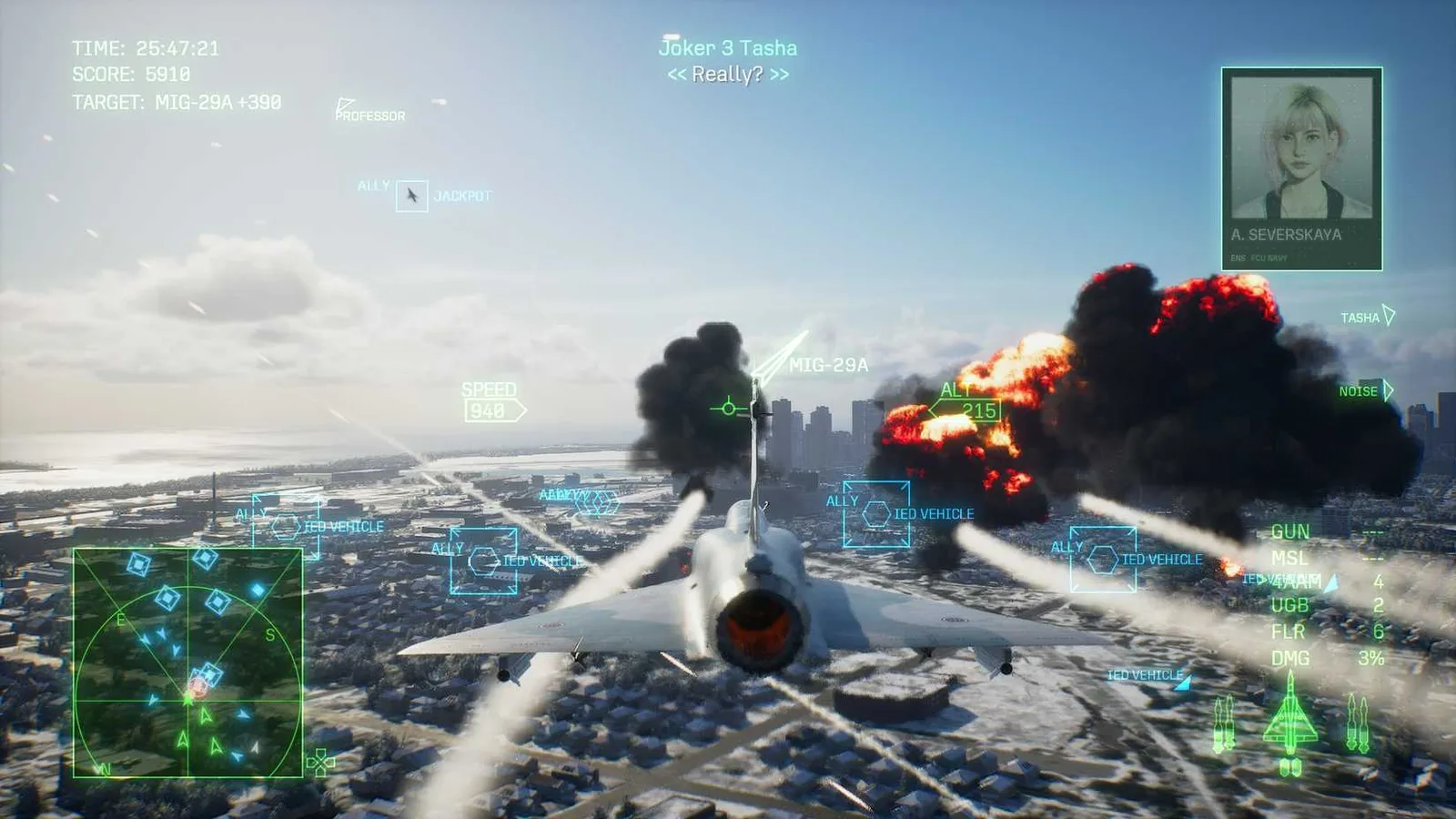
Check mouse steering separately from keyboard steering
Mouse and keyboard input should be tested as two parts of a setup. If the aircraft turns reliably with keys but mouse movement feels insufficient, that is a different symptom from the entire device failing to register. Identify the input that produces the problem before changing the rest of the layout.
A simple check is to use a familiar aircraft, make a small correction with the keys, then try the corresponding movement with the mouse. Watch what changes on screen rather than assuming mouse movement behaves exactly like moving the left stick. Repeat at a safe moment with enough space to recover your orientation.
If you adjust sensitivity, compare one change at a time. Keep the previous value so you can return to it if aiming becomes harder. A value that feels comfortable for another player's mouse and desktop setup is not automatically appropriate for yours. Avoid treating a community DPI recommendation as a universal requirement or a guaranteed repair.
Also distinguish menu navigation from aircraft control. A mouse that moves through menus successfully has demonstrated menu input; it has not demonstrated that every flight action is configured to your preference. Check the actual steering behavior in flight before deciding the setup is finished.
The useful result is a precise description such as “keyboard pitch responds, but mouse correction remains too small” or “the intended roll input produces a different action.” That gives you a specific setting to investigate. “PC controls feel wrong” leaves too many possible causes mixed together.
Keep control mode and difficulty changes separate
Rookie, Pilot, Veteran and Elite describe gameplay difficulty. Standard and Expert describe steering. Selecting Expert does not require you to choose a higher difficulty, and lowering difficulty does not mean you must abandon direct roll-and-pitch control.
Pilot is the normal starting recommendation for newcomers and players returning after a break. Rookie provides more support for learning or following the story. Veteran and Elite place greater demands on managing threats and objectives. Choose the challenge level that leaves you enough attention to evaluate the control change you are making.
If you like Expert but cannot comfortably track enemies while practicing, reducing enemy pressure is a reasonable way to learn the input sequence. If the problem is that horizontal input rolls the aircraft when you expect a direct turn, check the control mode first. Raising or lowering enemy difficulty will not change that basic distinction.
For a useful comparison, repeat a familiar section with one setting changed. Judge whether you can select the intended target, make the planned turn and recover a comfortable orientation. Mission completion alone does not explain whether an input change helped; noticing which action became easier does.
Make wingman commands part of the control check
Joker Flight commands are another input group to learn, alongside steering and weapons. Attack focuses the squadron on a threat, Disperse lets the wingmen engage more independently, and Cover brings their attention back toward protecting you. Special-weapon orders allow their stronger weapons to be used when appropriate.
The immediate setup task is to recognize the command prompt and reach the directional controls while maintaining flight. You do not need to turn the first control check into a full squadron tactics exercise. Select an order intentionally, confirm the response, and return your attention to the aircraft.
If you press a directional input and obtain an unexpected result, read the current prompt before repeating it. Do the same after changing control devices. Remembering the name of the order is more reliable than assuming its physical location from an older layout.
Confirm the setup in a repeatable flight check
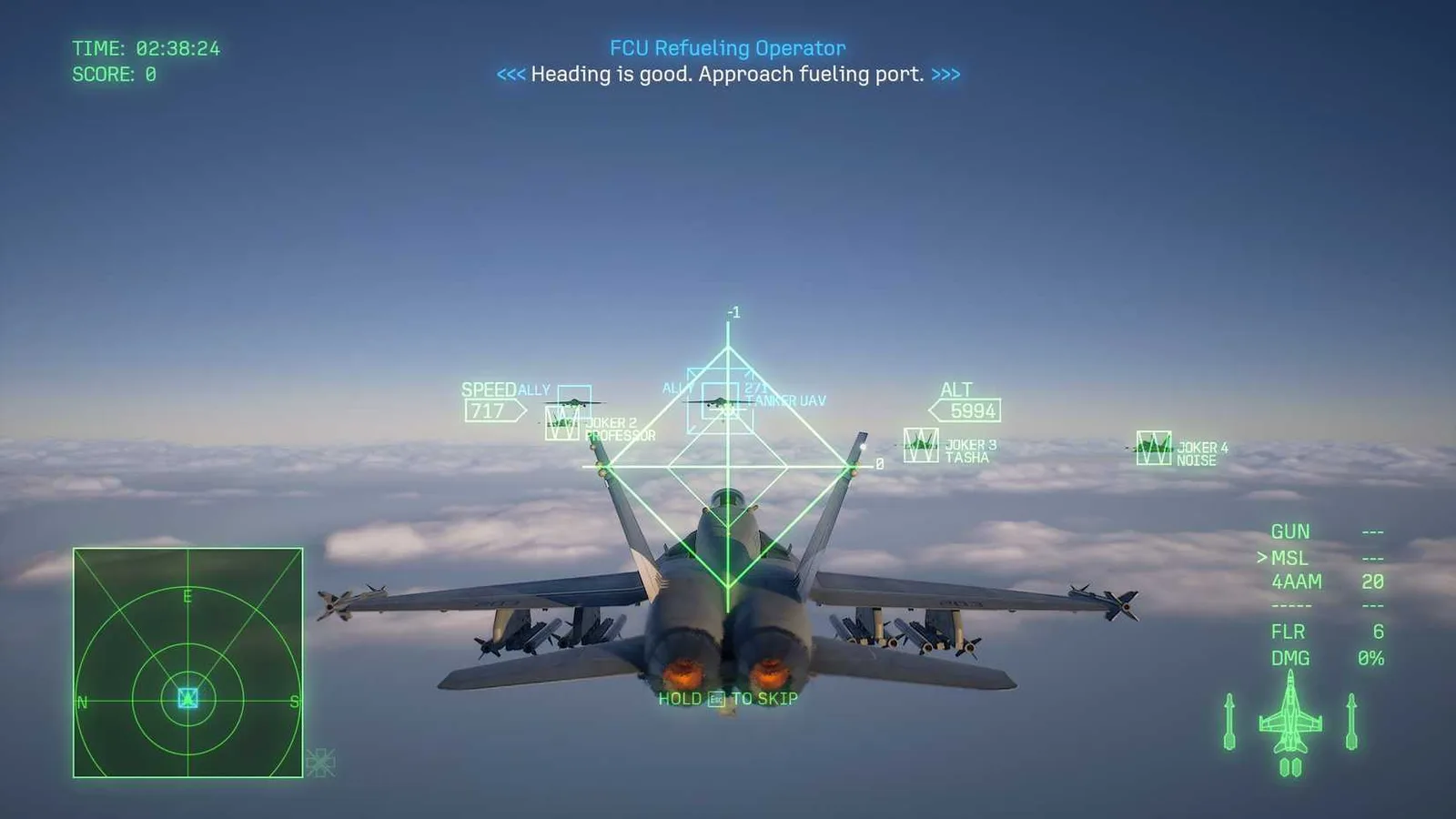
The speed readout is left of the aircraft; altitude is on the right.
Use a familiar aircraft and an uncluttered moment to verify the layout. The goal is to perform each intended action without searching for the input or changing several settings at once.
- Steer and recover. Turn in both directions, then return to a stable heading. With Expert, separate the bank from the pitch movement.
- Change speed. Accelerate, decelerate and return to comfortable flight. Keep your steering input available during both actions.
- Select a target. Cycle deliberately and confirm that the selected target is the one you intended.
- Select a weapon. Switch once and read the weapon display. Use the correct firing input when an appropriate opportunity appears.
- Check view and countermeasures. Identify their actual bindings and make sure you can reach them without confusing them with target switching.
- Issue an order. Confirm one wingman command while maintaining control of the aircraft.
If one step fails, adjust that part and repeat it before changing anything else. For a flight stick, verify that the system recognizes its stick, throttle and buttons before diagnosing the game's mapping. A device responding in Windows and a device having the intended AC8 bindings are separate checks.
Keep a working layout once these actions are comfortable. Change it again when you can name a specific problem, such as a hard-to-reach target switch or unwanted input near the stick's center. That gives each adjustment a clear purpose and makes it easier to keep the controls consistent between sorties.