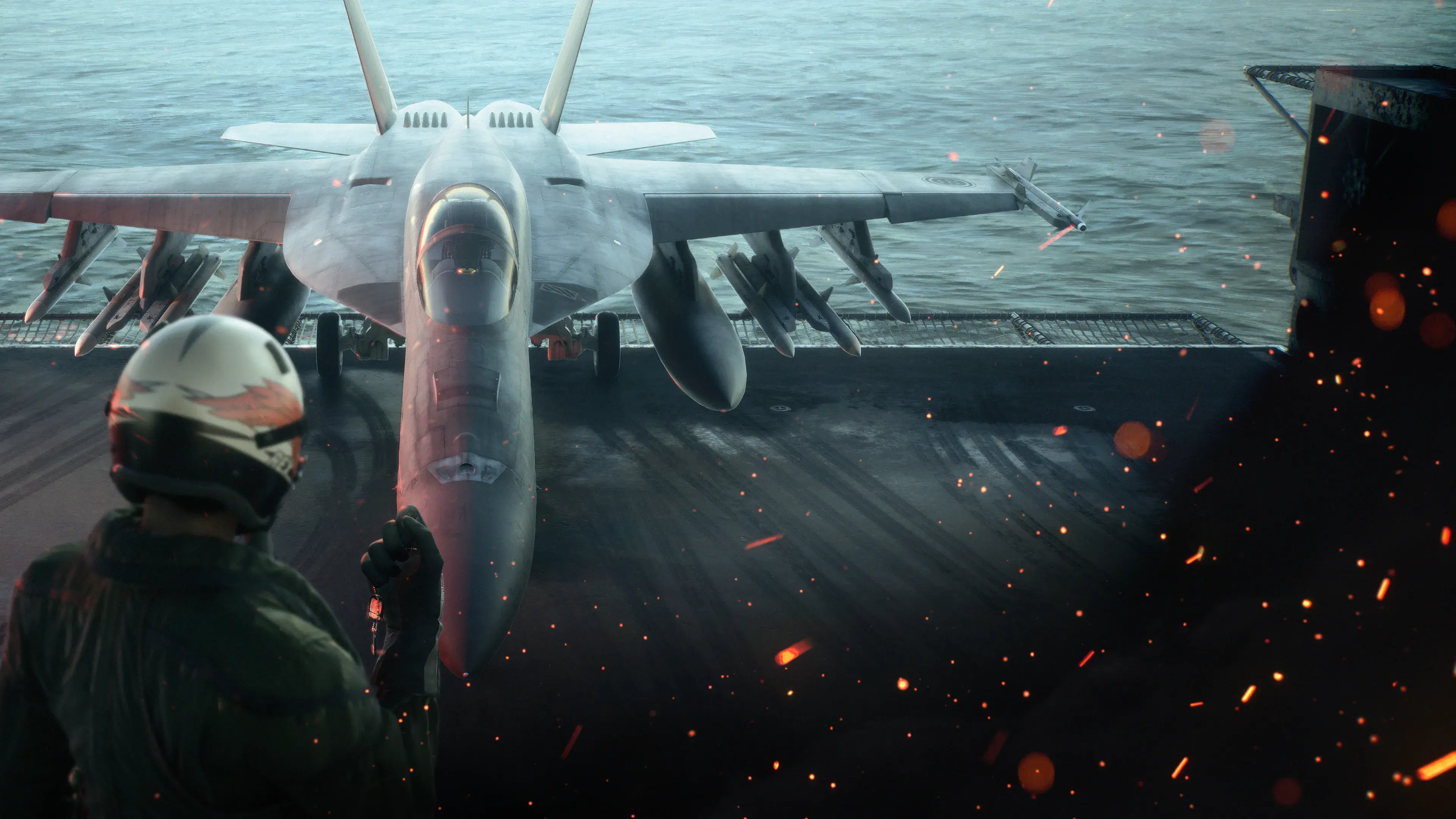
Unlock Ace Combat 8 Drop Tanks after clearing the Campaign, purchase the 100,000-MRP Drop Tank part, and equip it in a MISC slot before the sortie. While flying, hold your assigned weapon-switch control to jettison the tanks. A brief press changes weapons instead.
The part is for appearance and the release animation. It adds no fuel, ammunition or performance bonus, and some aircraft/weapon combinations cannot display it. Keep the slot for a functional part when that matters more to your build.
Unlock, equip and release
| Stage | Required action |
|---|---|
| Campaign clear | Finish the story and return to the Aircraft Tree |
| Purchase | Find Drop Tank and spend 100,000 MRP |
| Equipment | Place the part in an available MISC slot |
| Compatibility | Confirm tanks are visible with the selected aircraft and special weapon |
| Flight | Hold the current weapon-switch binding |
Purchasing the node and equipping the part are separate actions. A skin or emblem change does not equip Drop Tank.
Find the Drop Tank node
The Steam 25201480 tree reference marks Drop Tank as unlocking after all missions are cleared. Its parts reference links the node from F-22A, F-35C and Su-57. The earlier walkthrough describes finding it after F-35C; that is a useful place to look, rather than proof that every save must take only that route.
Open the node in your current tree and read its connectors before spending. The 100,000 MRP is the part price, not the total cost of acquiring the aircraft and intervening nodes you do not own. Use the Aircraft Tree budget tool to keep those costs separate.
You do not need to start New Game Plus solely for the part. If the post-Campaign node is not visible, first confirm that the story clear was saved, then revisit the high-end aircraft branches.
Equip a compatible setup
- Select the aircraft you will fly.
- Open its parts loadout and find Drop Tank under MISC.
- Make room in that category if all slots are occupied.
- Confirm the selected part.
- Inspect the aircraft with its chosen special weapon before launch.
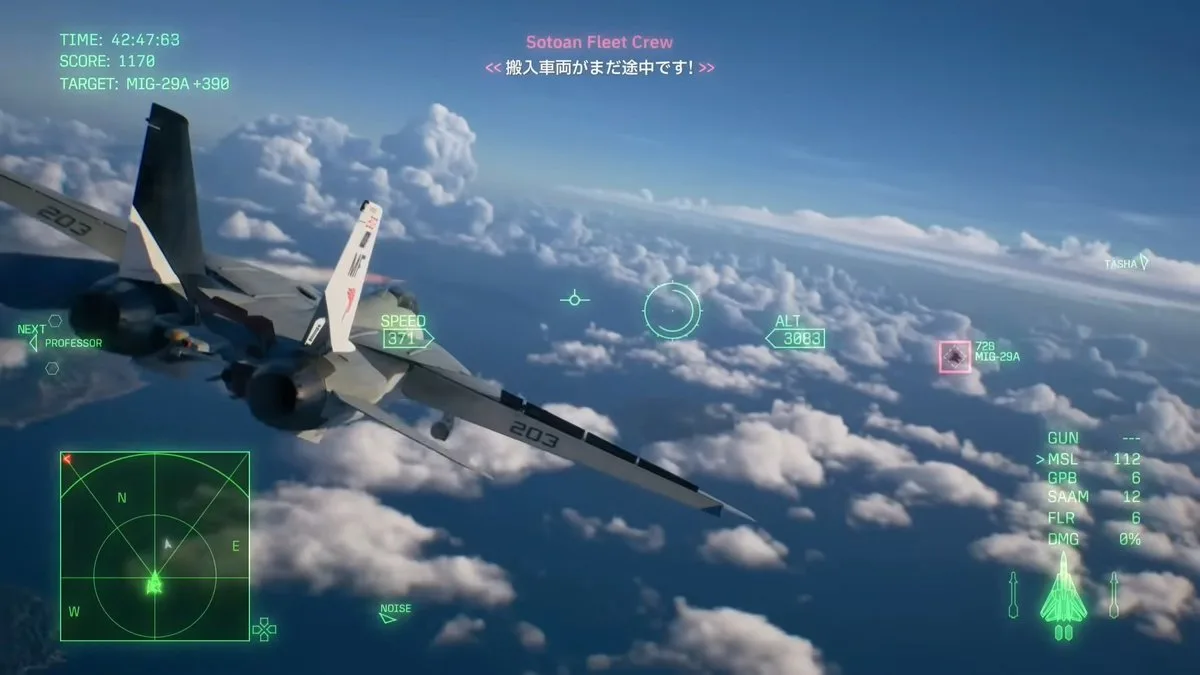
Check the external tanks on the model before testing the release control.
The recorded item description explicitly excludes some aircraft and weapon combinations. If tanks do not appear, test one special-weapon change while keeping the aircraft and part the same. Then try another aircraft if necessary. This isolates a compatibility problem from a lost unlock or unequipped part.
Use the correct release input
Check the current control bound to switching weapons. Hold that input during flight when the tanks are attached. Platform defaults and remapped controls can differ, so the binding displayed by your game is the useful reference.
Choose a safe stretch of flight while checking the input. If the selected weapon changes but the tanks remain, retry with a hold and verify the equipped model. There is no performance reason to wait until a particular combat phase.
Troubleshoot the missing step
| Problem | Check next |
|---|---|
| Cannot find the node | Saved Campaign clear and the high-end tree branches |
| Node is visible but unavailable | Required connectors and MRP shown by the current panel |
| Bought the part but no tanks | MISC equipment and aircraft/weapon compatibility |
| Tap switches weapons | Hold the assigned control |
| Expecting extra range or speed | The part has no listed stat change; choose a functional upgrade instead |
Campaign equipment does not establish Online ownership. Check the separate Online Hangar before assuming a Campaign purchase applies there.
Sources and version scope
Checked October 15, 2026. Tree and item data below come from an unofficial extraction of Steam build 25201480; the display and release guidance also uses the linked walkthrough.
- Aircraft Tree reference: Campaign-clear gate and part price.
- Parts reference: MISC category, connected aircraft and compatibility wording.
- Drop Tank walkthrough: equipment and cosmetic behavior.